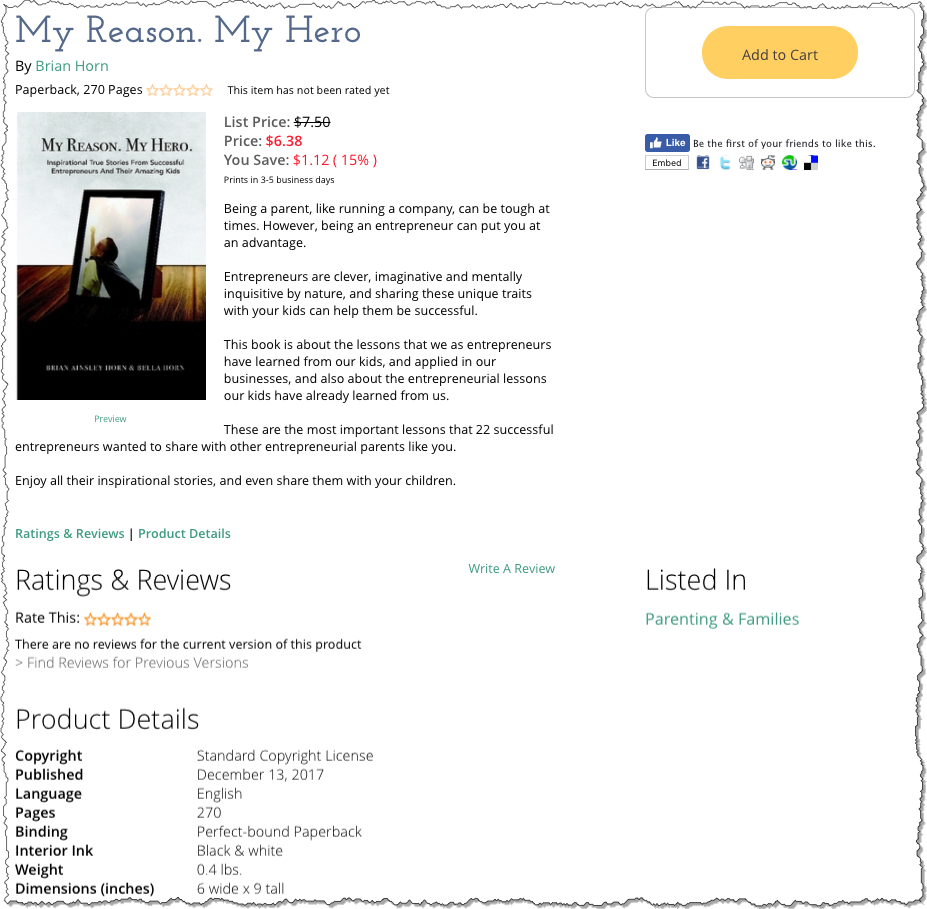
You can create a new LuLu account Here
Using Lulu vs CreateSpace
Advantages
- Lulu allows you to upload multiple versions with duplicate content
- Lulu allows you to publish instantly with no review process
- Lulu allows to you provide private links to allow contributors to order books
- Lulu is always running specials for discounted books and/or free shipping
- Lulu provides Volume discounts
Limitations
- Lulu only allows 9×6, 8.5×5.5, 4.25×6.85, and 8.5×11
- Lulu only provides glossy cover
- Lulu uses 50# white paper (CreateSpace uses 55#) – this causes a slight variation in spine size, but most likely will not affect printing
Create Your Book
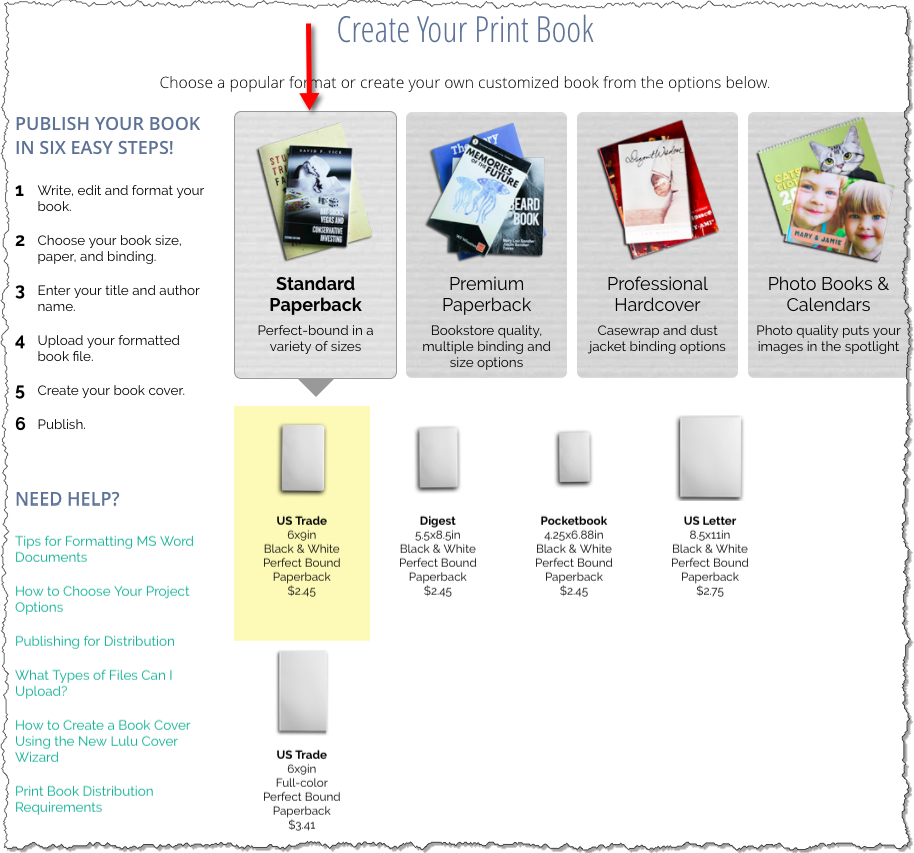
IMPORTANT Select Standard Paperback
Then choose your desired size (6×9, 4.25×6.85, 5.5×8.5, or 8.5×11)
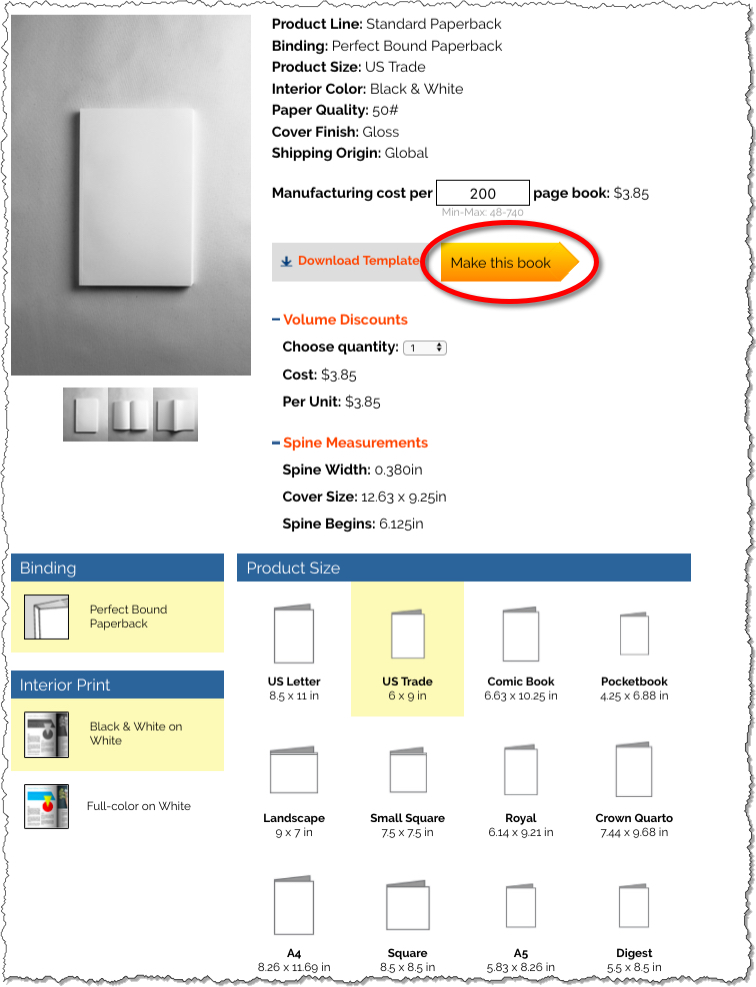
- Scroll down to estimate the book cost by entering the number of pages.
- Download a template if needed.
- Make note of the spine size for creating your cover.
- Verify you have selected the correct Binding, Interior Print, and Product Size then click Make Book.
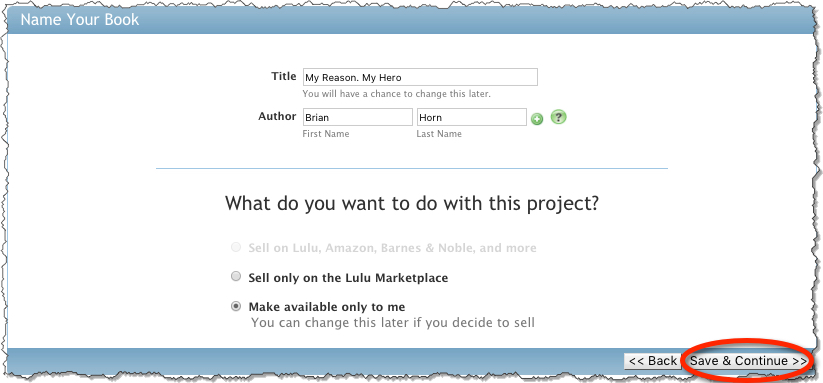
Name Your Book
1. Enter the Title and Author Name.
2. Select “Make available only to me” (This can be changed later)
Add Interior Files
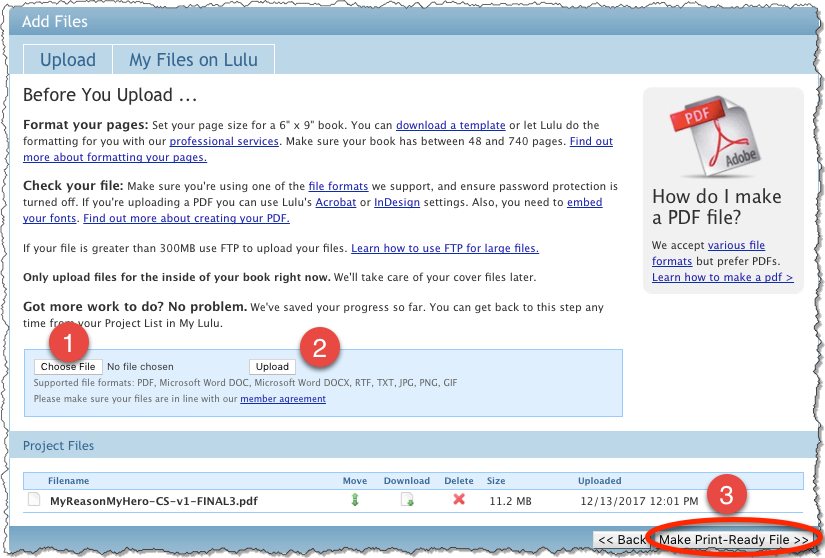
1. Select the file from your computer
2. Click “Upload”
3. Once the file has been uploaded, it will appear in the Project Files list
3. Click Make Print-Ready File
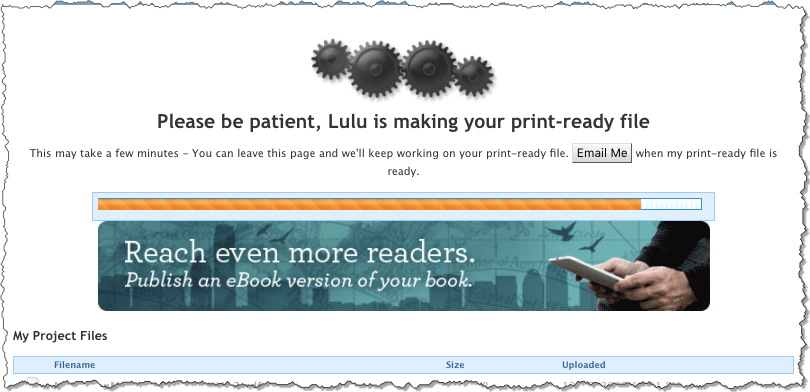
It may take a few minutes for Lulu to process the file
Add Cover Files
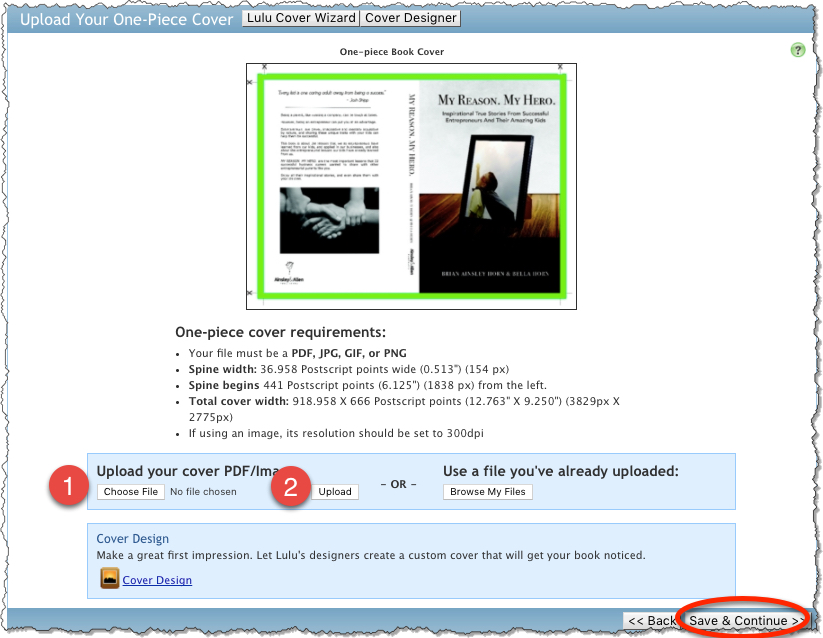
After the interior file is processed, you will be directed to the Cover screen. To upload a PDF file, select advanced one-piece cover designer

1. Upload your PDF cover file
2. Click Upload
3. Click Save and Continue
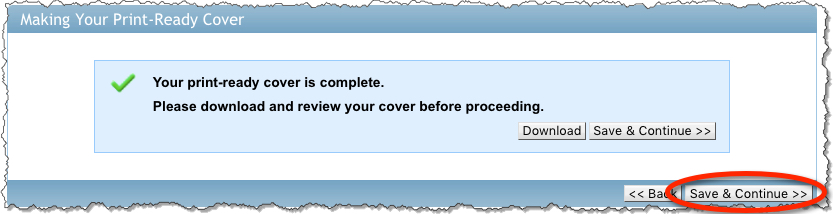
You will be notified when the print-ready cover file is ready. You can download to Preview the file. Select Save & Continue
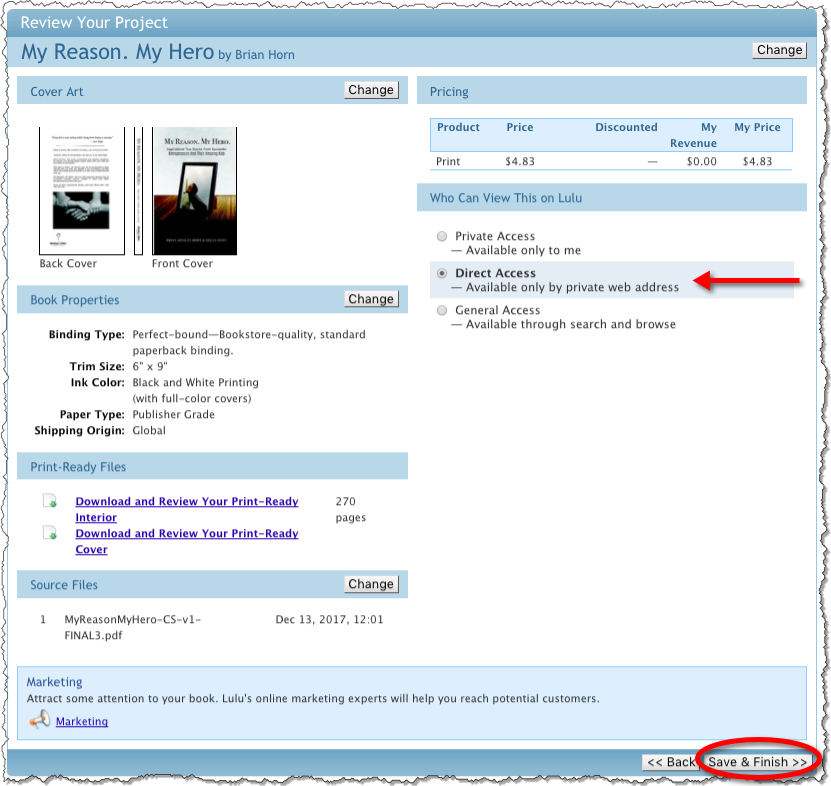
Review Your Project
1. Review the project information. Ensure Direct Access is selected.
2. Click Save & Finish
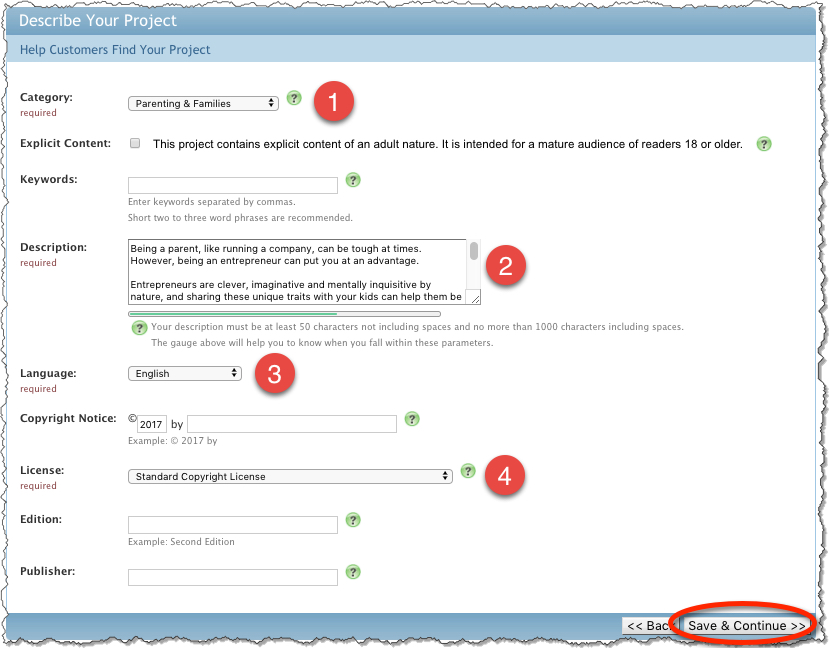
Project Description
1. Select a Category
2. Enter the book Description
3. Select the Language
4. Select the License Type
5. Click Save & Continue
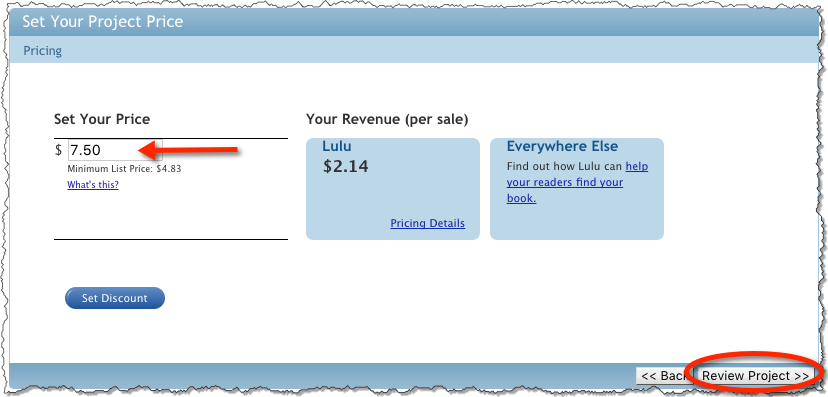
Set Your Project Price
1. The Minimum List Price will be shown
2. You can set your price to anything above the minimum list price
3. Once you set your price, you can view Your Revenue Per Sale
4. Click Review Project
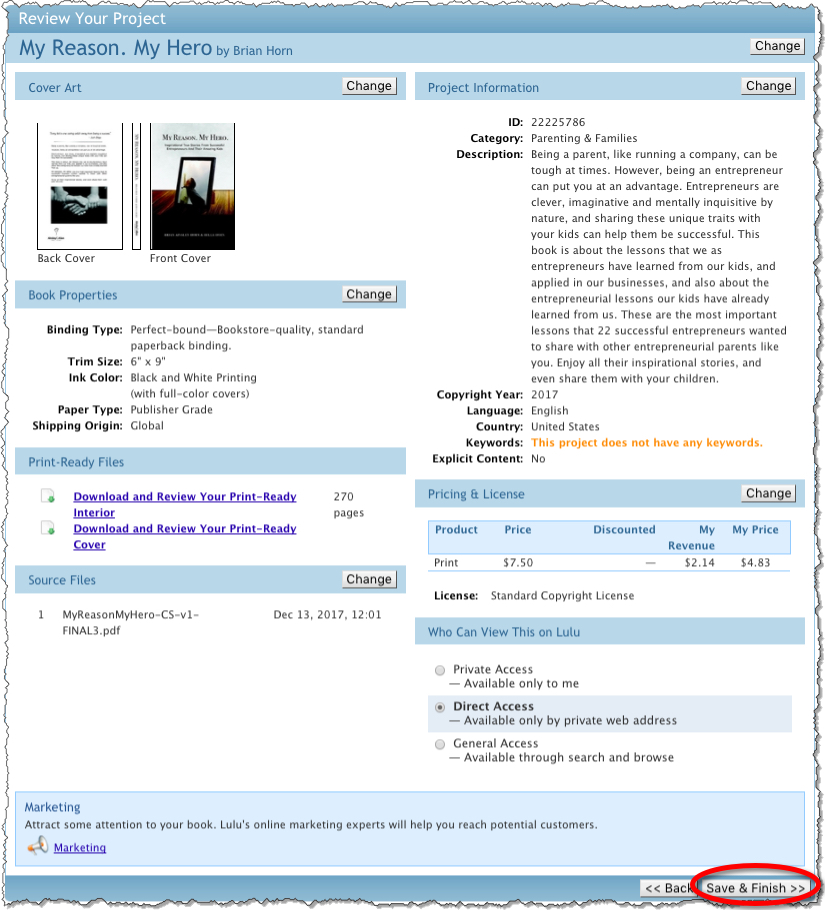
Review Your Project
1. Review your project information
2. Pricing & License Ensure your Price is set
3. Who Can View This on Lulu Ensure Direct Address is chosen
4. Click Save & Finish
Order a Proof
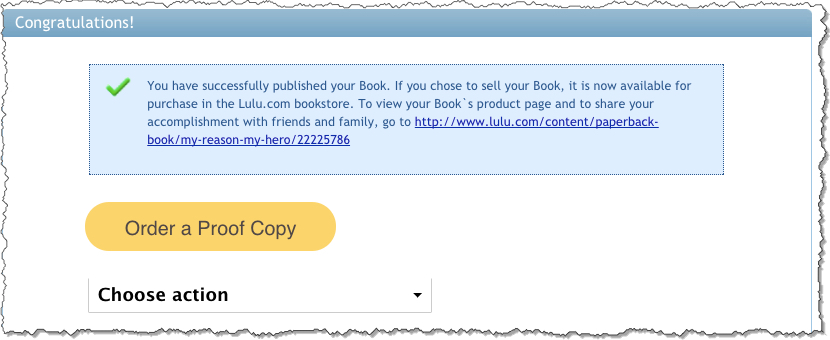
1. You will see a message that your book has successfully been published
2. The direct access link will be listed
3. Click Order a Proof Copy
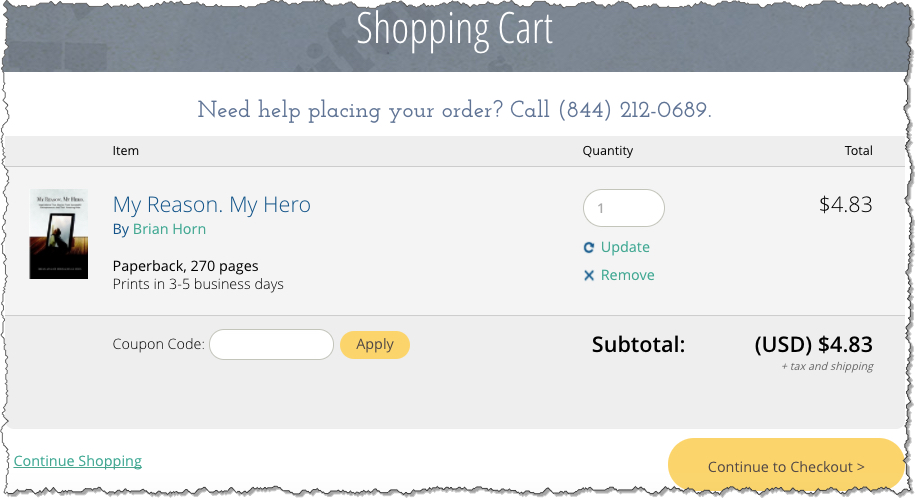
Shopping Cart
1. Enter the Quantity you want to order
2. Click Update
3. Click Continue to Checkout
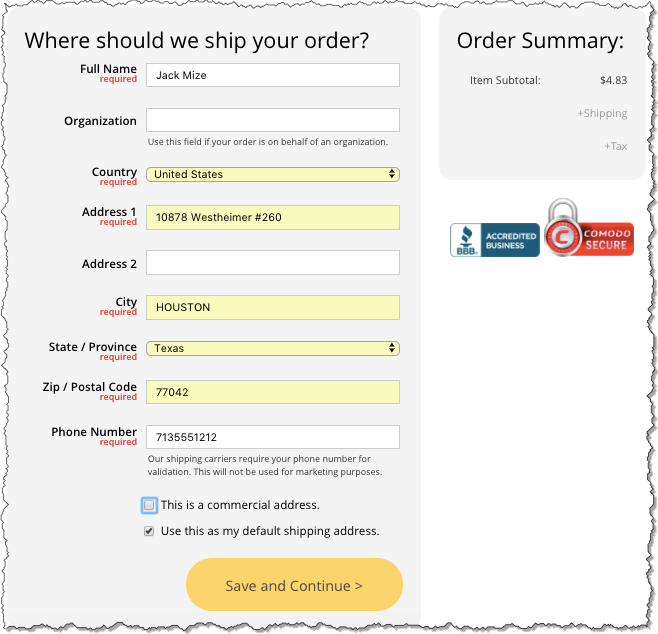
Shipping Address
1. Enter the shipping address information
2. Click Save and Continue
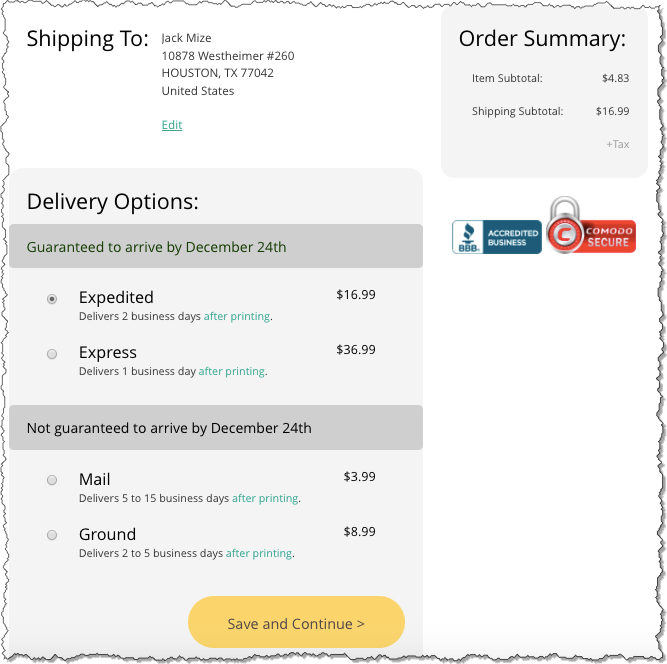
Delivery Options
1. Choose the Delivery Speed
2. Click Save and Continue
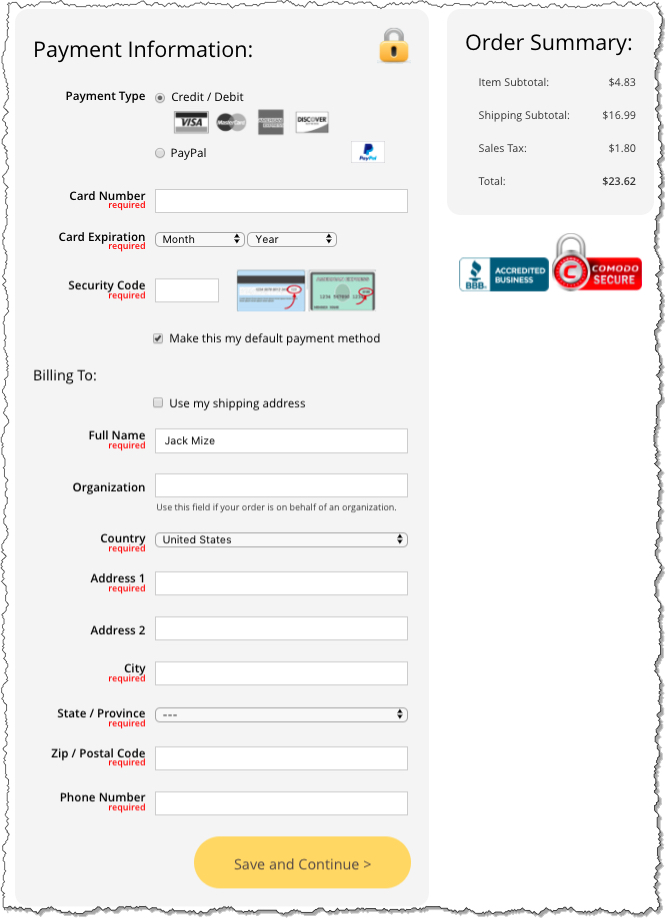
Payment Information
1. Enter the Payment Type and Information
2. Enter the Billing Address
3. Click Save and Continue
Adding Discounts for Direct Access Orders (OPTIONAL)
1. Login to Lulu.com
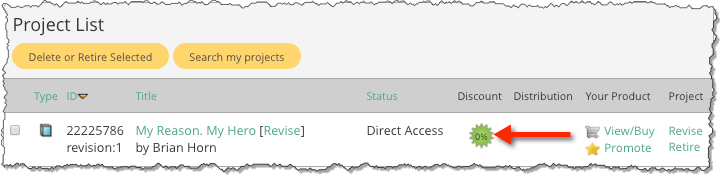
2. Go to My Projects
3. Click on the 0% image in the Discount column for the title you want to discount
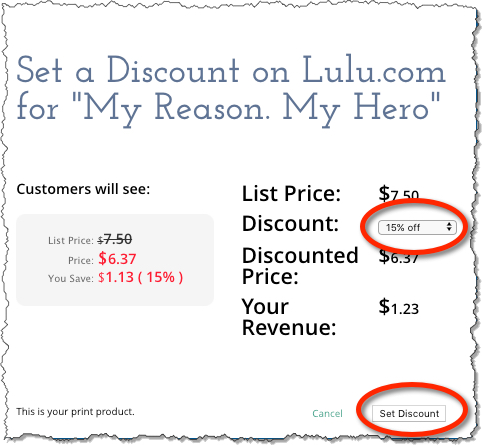
Set Discount
1. Select the Discount percentage from the drop-down list
2. Click Set Discount
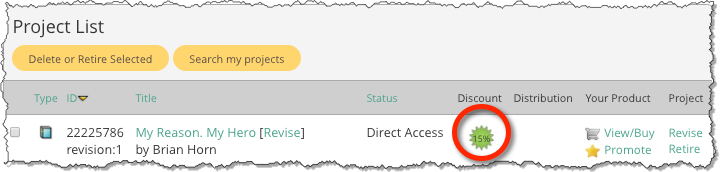
Now the discount shows on your Dashboard as 15%
Using Direct Access Link
1. From your Projects Dashboard, click on the Title of the book
2. Scroll down until you see “Who can view this on Lulu”
3. Copy the project URL
4. Send URL to your client so they can order copies when needed

What the Customer Sees
The Customer can order books at the price you have set.