Login in to your account on KDP.com and select Create – Print Book.
Create Your Book
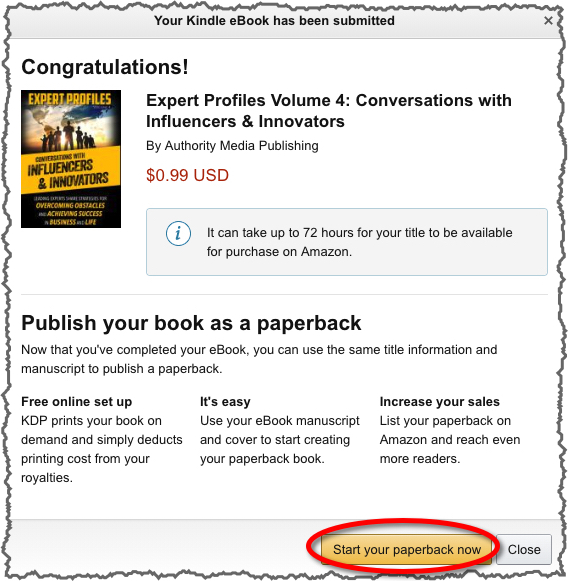
If you are ready to create your Paperback version right after uploading the Kindle version of your book, click on the “Start your paperback now” button.
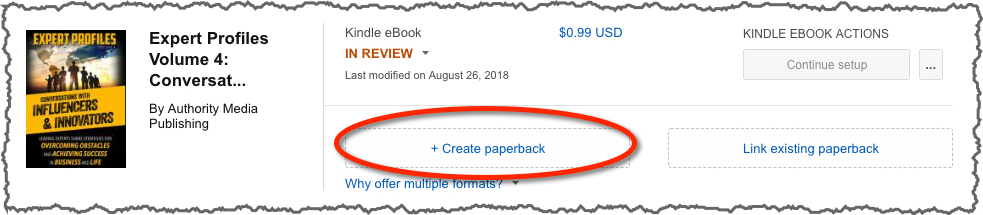
Or, you can select “Create Paperback” from your Bookshelf at any time
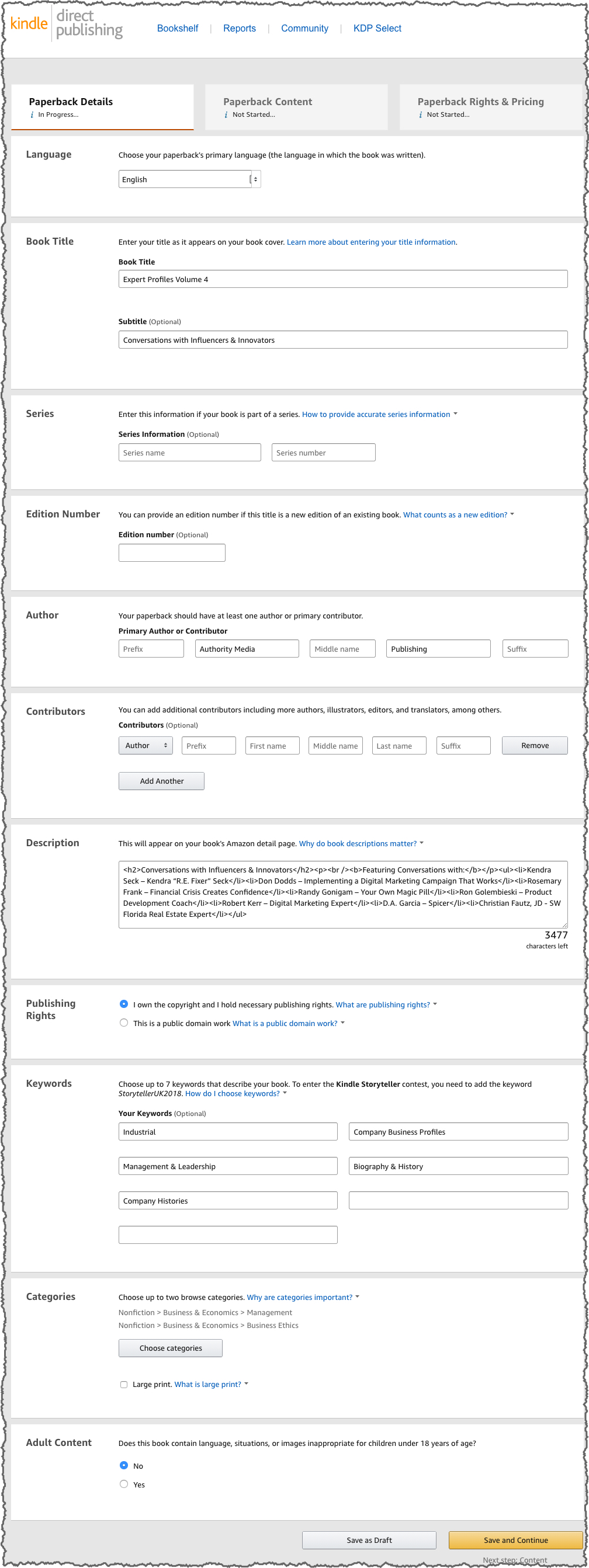
Book Details
The details you enter during title setup will appear on your Amazon detail page. The title, subtitle, author name, series information, and ISBN in your manuscript file must match the details you enter during title setup. Please also note that books are linked automatically if the author name and book title of both editions match exactly. During the publishing process, KDP tries to match book details like title and author name to other editions available in the Amazon catalog. Linking these formats provides the ideal browsing experience for customers, so you’ll want to make sure the title and author name you entered for your eBook and paperback match exactly.
KDP will complete the following fields from the Kindle book details:
- Language
- Title
- Subtitle
- Series
- Edition
- Author(s)
- Contributor(s)
- Description
- Publishing Rights
- Keywords
- Categories
- Adult Content
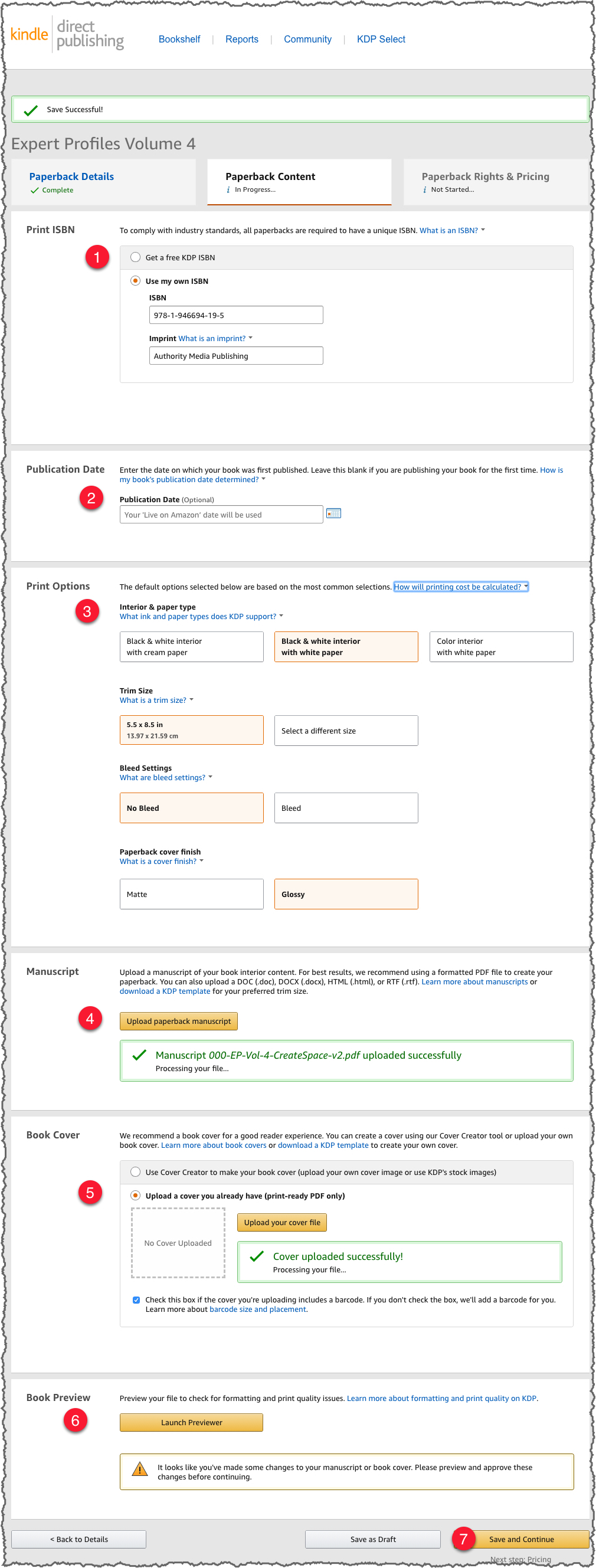
Content
Add information about the book Content
- ISBN
- Publication Date (leave blank and the date the book becomes “Live” on Amazon will be used)
- Print Options (interior & paper type, trim size, bleed settings, cover finish)
- Upload Manuscript (same PDF from CreateSpace)
- Create or Upload Cover (same PDF from CreateSpace)
- Preview Book
- Save
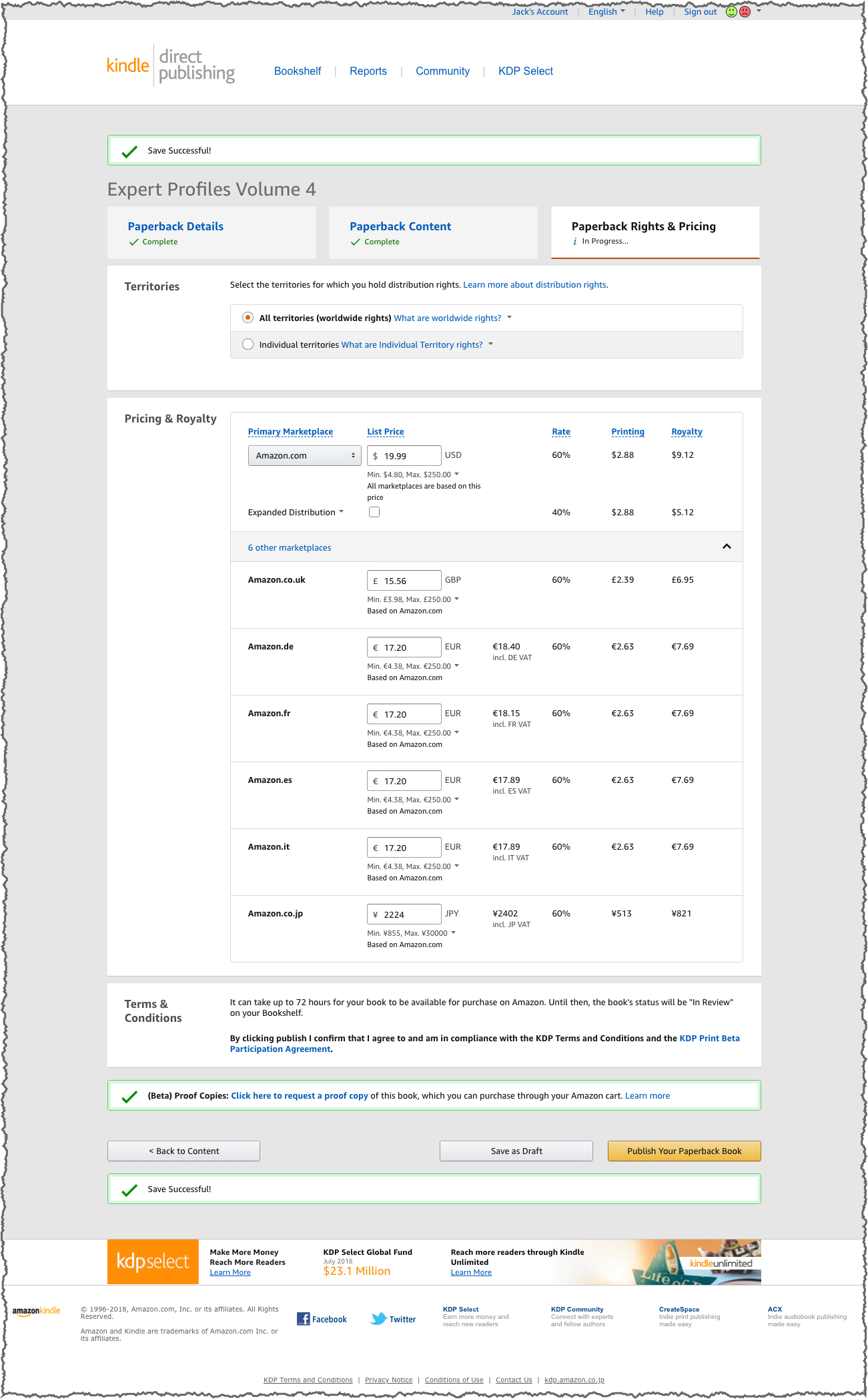
Paperback Rights & Pricing
- Select Territories
- Enter the List Price (KDP will calculate the price for individual territories)
- Read the Terms and Conditions
- Request a Proof
- Save as Draft OR Publish