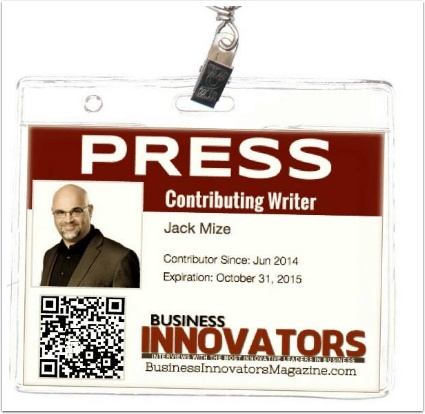
Login to BusinessInnovatorsMagazine.com
Login at https://businessinnovatorsmagazine.com/login. If you don’t know your login information check your Welcome email from when you joined or contact support@authorityagency.com to retrieve your account information.
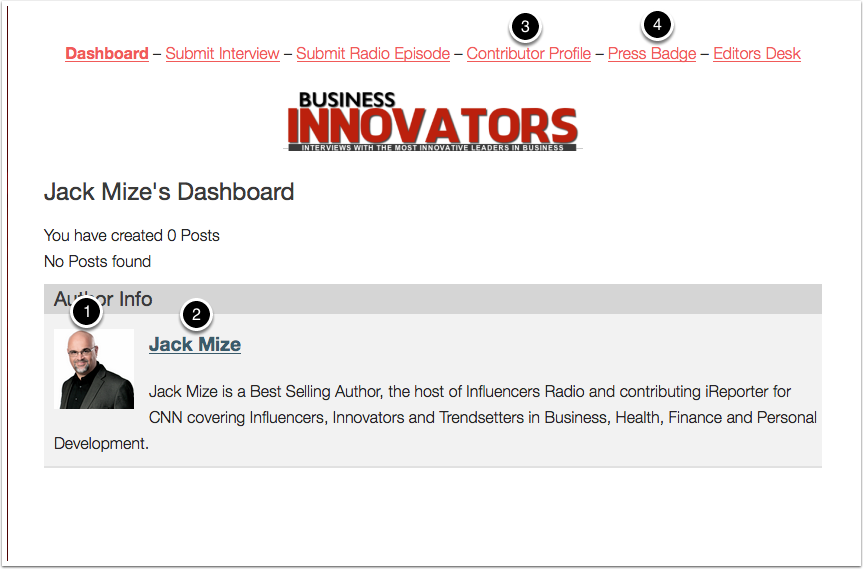
Check Your Contributor Profile information.
- Make sure your Contributor Profile Image is correct. It should be at least 250×250 and square demensions to fit properly on your Press Badge. This should be an image only. No Text or Logos.
- Make sure your Contributor Profile Name is correct. This will be how it will be shown on your Press Badge.
- If you need edit your name or upload your profile image click Contributor Profile on the menu and follow intructions.
- Once you’ve confirmed your Profile Name and Image are correct click the Press Badge on the menu.
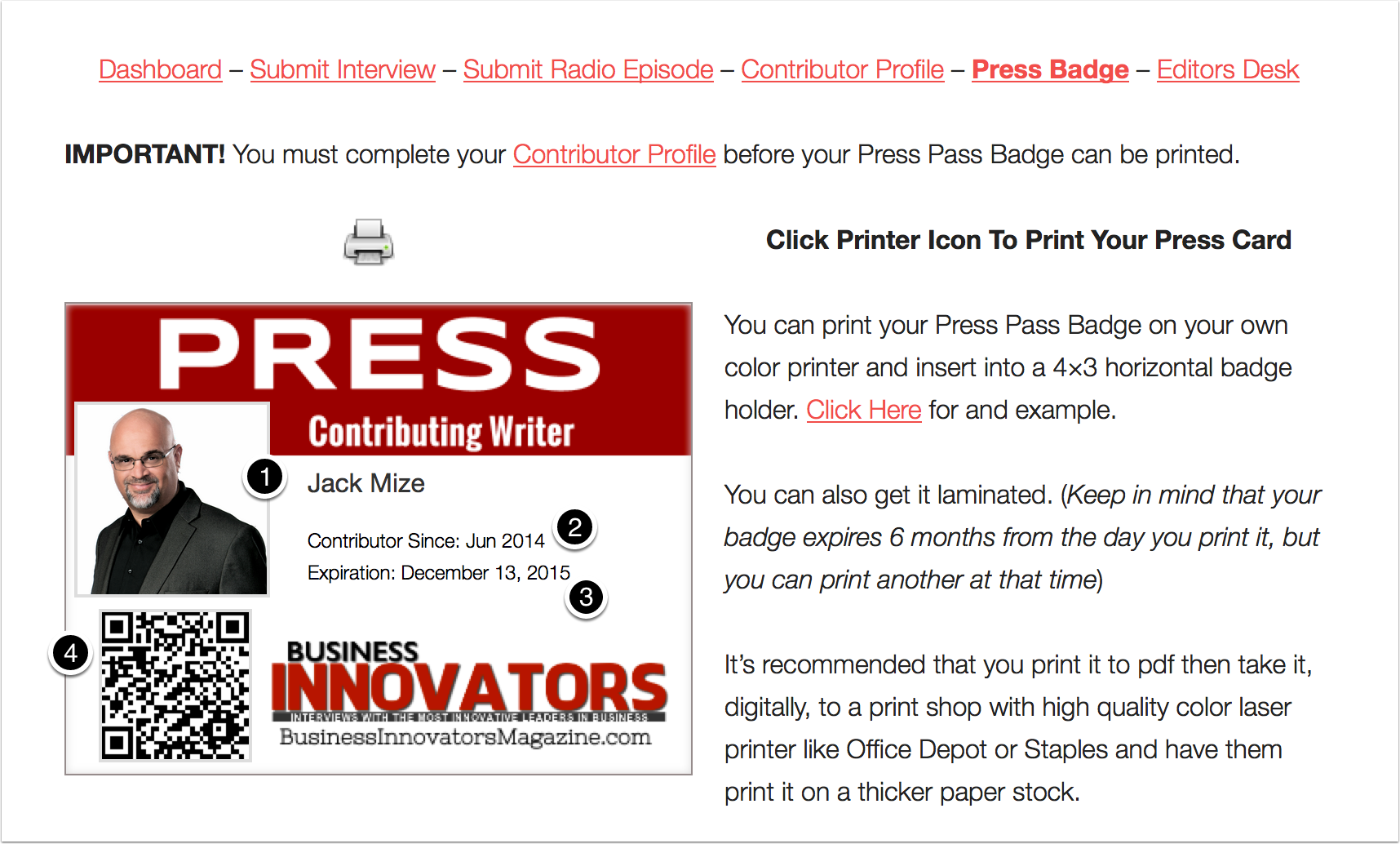
Understanding Your Press Badge Information
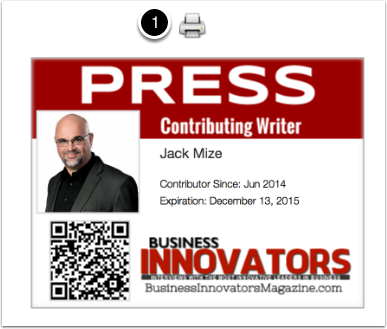
- Make sure your Press Badge contains your Contributor Profile image and name. If your profile image is not showing try uploading again.
- Your “Contributor Since” date represents the date you first logged into BusinessInnovatorsMagazine.com
- The “Expiration” date is the date your Press Badge expires, which is 6 months from the day your print it. You may print another at anytime to extend the expiration date.
- The QR Code is linked to your Contributor Archive of all the posts that you have published to BusinessInnovatorsMagazine.com
Printing Your Press Badge
You can print your Press Pass Badge on your own color printer, however it’s recommended that you print it to pdf then take it, digitally, to a print shop with high quality color laser printer like Office Depot or Staples and have them print it on a thicker paper stock.
1. Click the Print Icon to print your Press Badge
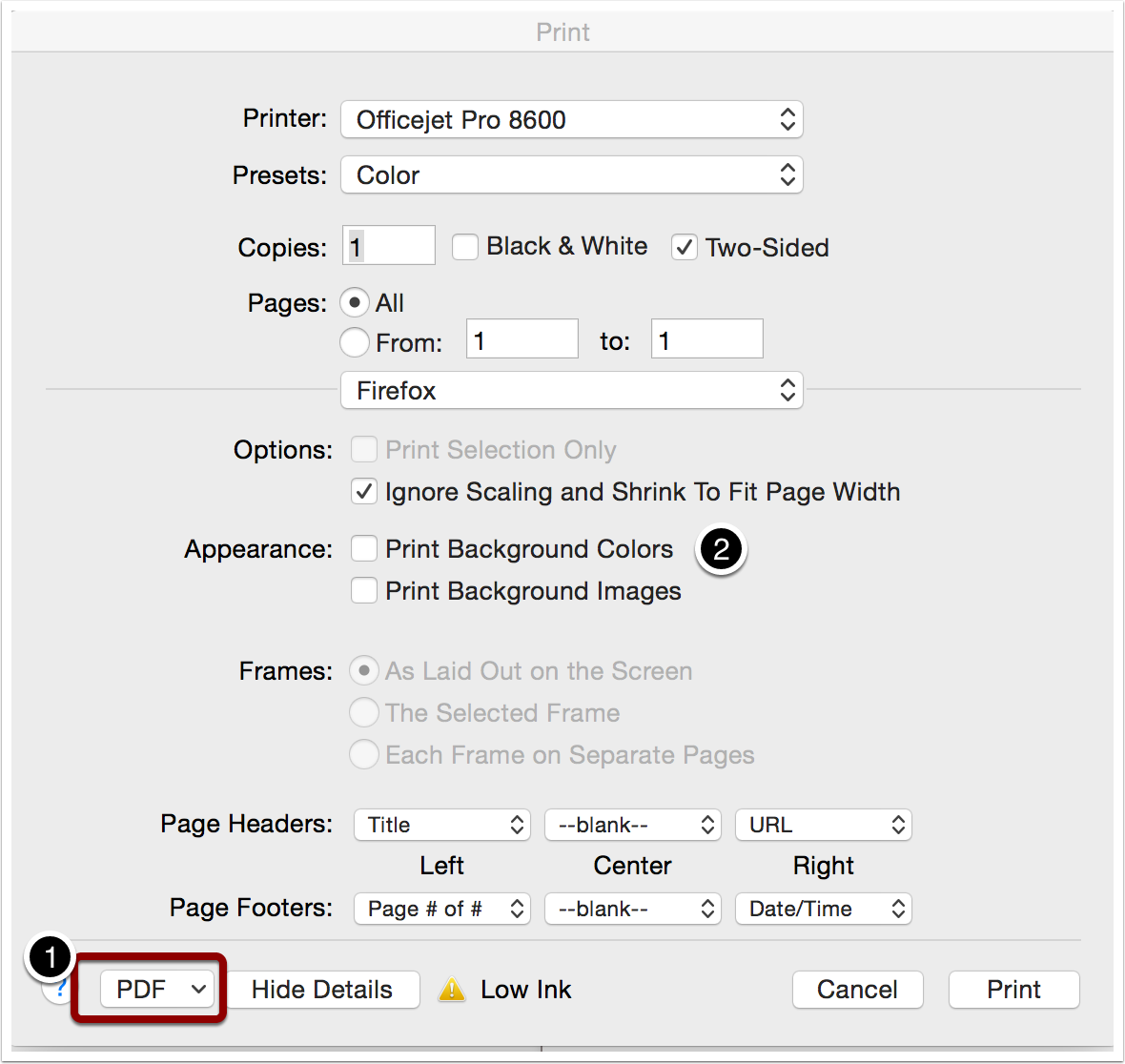
Choose Printer Settings
The default settings should work for most printers.
- If you are having your Press Badge printed professionally choose to print to pdf and save the digital file to give the printer.
- If you try printing your pass to your printer or pdf and the background doesn’t show, try selecting the “Print Background Images” option on your printer popup.
Displaying Your Press Badge
You can print your Press Pass Badge on your own color printer and insert into a 4×3 horizontal badge holder. Click Here for an example.